As Home Assistant continues to gain popularity as a leading smart home automation platform, more and more users are discovering the benefits of a centralised hub for controlling their smart devices. However, with great power comes great responsibility – maintaining a healthy Home Assistant server that runs smoothly and efficiently is crucial for optimal performance.
A smart home enables us to automate tasks and put more back into our day. Managing breaking changes and frequently fixing the Home Assistant server that provides that is counter productive.
In this blog post, we’ll discuss the potential issues that can arise when too many add-ons and custom integrations are added to your Home Assistant setup, and why it’s essential to prioritise only approved and well-maintained components.
The Risks of Over-Extension
As you start adding more features and integrations to your Home Assistant server, it’s tempting to install a plethora of add-ons and custom integrations to enhance its capabilities. However, this approach can lead to problems down the line:
- Instability and crashes: When too many add-ons are installed, conflicts between them can cause your Home Assistant server to crash or become unstable.
- Security vulnerabilities: Outdated or untested add-ons can expose your system to security risks, compromising the safety of your network and connected devices.
- Performance degradation: An excessive number of integrations can slow down your server, leading to delayed responses and frustrating user experiences.
The YouTube and Reddit communities are filled with incredible showcases of customised dashboards and clever integrations, but it’s essential to approach these examples with a critical eye. After using Home Assistant for over 5 years, I’ve learned that many impressive feats can be fragile and prone to breaking, particularly if they rely on complex, multi-component setups.
While the Home Assistant community is incredibly active and talented, not all customisations are created equal. Some efforts may have been rushed or designed with a specific, narrow use-case in mind, which can make them inflexible and difficult to maintain. It’s essential to remember that even the most impressive-sounding integrations can ultimately fall short if they haven’t been thoroughly thought through.

Home Assistant Community Store (HACS)

The Home Assistant Community Store (HACS) offers a vast collection of user-created integrations and custom components to enhance your smart home setup. However, when installing third-party content from HACS, it’s essential to only select stable and frequently updated components that align with your specific needs. Be cautious of newer or less-maintained entries, as they may introduce issues or become obsolete.
The Benefits of Keeping it Simple
So, what’s the solution? The answer lies in adopting a “less is more” approach when it comes to add-ons and custom integrations. Here are some best practices to maintain a healthy Home Assistant server:
- Stick to approved add-ons: Only install add-ons that are officially approved by Home Assistant. These have been thoroughly tested and vetted for stability, security, and performance.
- Prioritize core functionality: Focus on the essential features and integrations that provide the most value to your smart home setup.
- Regularly update and maintain: Ensure you keep all installed add-ons up-to-date with the latest releases. Regular maintenance can help prevent issues and ensure smooth operation.
- Monitor system performance: Keep an eye on your server’s resource usage, memory consumption, and CPU load to detect potential problems early.
My Tips
- Stay informed, stay ahead: Regularly check the Home Assistant webpage to stay up-to-date on the latest developments. Typically, a new feature will be hinted at in advance, and it’s often wise to wait for an official release before diving in, rather than rushing into a beta or pre-release version that may not yet be fully polished.
- Prioritise simplicity: Be selective when adding new features or integrations to your Home Assistant system. While new capabilities can be exciting, some may require a significant investment of time and effort to set up and troubleshoot. Consider whether the benefits outweigh the potential costs, and focus on maintaining a straightforward configuration that’s easy to manage.
- Backup regularly: Make it a habit to take daily or weekly backups of your Home Assistant instance. This ensures that even if something goes wrong during an update or with changes to your configuration, you can easily roll back to a stable state and restore functionality. Use the built-in backup feature to save yourself from potential headaches.
- Update wisely: Home Assistant releases an update on the first Wednesday of each month. While Home Assistant’s testing process is thorough, it’s not infallible. Monthly updates can sometimes introduce unexpected behavior or even crashes. My advice is update in the second or third week of the month to catch any bug fixes.
Embracing a Minimalist Approach
By adopting these best practices, you’ll be able to maintain a stable and efficient Home Assistant server that provides the best possible experience for you and your family. Remember, it’s not about adding as many features as possible – it’s about keeping things clean, simple, and well-maintained.
Don’t let unnecessary add-ons and integrations compromise your smart home setup. By sticking to approved components and focusing on core functionality, you’ll be able to enjoy the benefits of Home Assistant without worrying about stability or security concerns.
Conclusion
Maintaining a healthy Home Assistant server is crucial for optimal performance and peace of mind. By prioritizing only approved add-ons, keeping things simple, and regularly updating your system, you’ll be able to enjoy the full potential of this powerful smart home platform.
So, take it from me: keep it clean, keep it simple, and keep your Home Assistant server running smoothly!]]>

In the ever-evolving landscape of smart home technology, one of the key considerations for enthusiasts and beginners alike is understanding the various protocols that enable seamless connectivity between devices. From Zigbee to Z-Wave, Wi-Fi to Bluetooth, each protocol comes with its own set of strengths and limitations. In this comprehensive guide, we’ll delve into the world of smart home protocols, shedding light on their intricacies and helping you make informed decisions for your smart home setup.
Zigbee
Ah, Zigbee, the unsung hero of the smart home world! This wireless protocol operates on low power consumption, making it perfect for battery-operated devices like sensors and smart locks. With its mesh networking capabilities, Zigbee devices can communicate with each other, extending the range and reliability of your smart home network. Plus, its open standard nature ensures interoperability between different manufacturers’ products, giving you the freedom to mix and match to your heart’s content.
Z-Wave
If Zigbee is the unsung hero, then Z-Wave is the smooth operator of the smart home arena. Developed specifically for home automation, Z-Wave boasts impressive range and reliability, thanks to its mesh network topology. With over 2000 certified products and counting, Z-Wave offers a wide range of devices, from light switches to thermostats, all seamlessly interoperable within the Z-Wave ecosystem. Plus, its low power consumption and frequency-hopping technology ensure minimal interference and maximum performance. Z-wave devices tend to be more expensive than its rivals and you do need to be mindful of which region the device is configured for.
Z-Wave operates on different frequency bands or regions around the world to avoid interference with other wireless devices and comply with regulatory requirements. Here are the main Z-Wave frequency bands or regions:
- 868.42 MHz: Used primarily in Europe, including countries like the UK, Germany, France, and Spain.
- 908.42 MHz: Used in North America, including the United States, Canada, and Mexico.
- 919.82 MHz: Used in some countries in Asia and Oceania, such as Australia and New Zealand.
WiFi
Ah, good ol’ Wi-Fi, the workhorse of the modern world! While not specifically designed for smart home applications, Wi-Fi offers unparalleled speed and compatibility, making it a popular choice for smart home devices. From smart speakers to security cameras, Wi-Fi-enabled devices can connect directly to your home network, allowing for easy setup and integration with other devices. However, Wi-Fi’s high power consumption and potential for network congestion may not be ideal for battery-operated devices or large-scale deployments.
Bluetooth
Who could forget Bluetooth, the ubiquitous wireless technology found in everything from smartphones to toothbrushes! While not as common in the smart home space as Zigbee or Z-Wave, Bluetooth has its own set of advantages, including low cost, widespread adoption, and compatibility with a wide range of devices. With the introduction of Bluetooth Low Energy (BLE), smart home devices can now operate on minimal power, making them ideal for battery-operated sensors and beacons.
Thread
A relative newcomer to the smart home scene, Thread is gaining traction as the go-to protocol for smart home networking. Developed by the Thread Group, which includes industry giants like Google, Apple, and Samsung, Thread offers robust security, low power consumption, and seamless interoperability between devices. With its mesh networking capabilities and support for IPv6, Thread promises to revolutionize the way we connect and control our smart home devices.
Matter
Matter is a higher-level interoperability standard that defines how smart home devices should interact and interoperate with each other, regardless of the underlying communication protocol. Matter builds upon existing protocols like Thread, Wi-Fi, and Ethernet, among others, to ensure compatibility and ease of use for consumers. It aims to create a unified ecosystem where different smart home devices can work together seamlessly, regardless of the manufacturer or communication protocol. There’s been a lot of promise offered by Matter, however it’s been slow to gain traction and adoption. As of March 2024, it hasn’t set the smart home world on fire, but who knows what’s in store. Even if it were possible, I wouldn’t be filling my home full of Matter-based devices at this stage.

Conclusion
In conclusion, smart home protocols play a crucial role in enabling seamless connectivity and interoperability between devices. Whether you’re a Zigbee zealot, a Z-Wave aficionado, or a Wi-Fi warrior, understanding the strengths and limitations of each protocol will help you build a smart home ecosystem that meets your needs and preferences. So go forth, dear reader, and embark on your journey to smart home nirvana with confidence and clarity!
]]>This post has two elements. The first is my experience and journey which led me to purchase the Sony WH-1000XM5 headphones, it’s good background info to consider. The second is just my review. Jump straight to the review if you are in a hurry!
I’ve gone through several wireless headphones and headsets in recent years for home office and gaming purposes. I’ve never found a perfect all-rounder. The Turtle Beach Stealth 700 Gen 2 for Xbox worked well on my Windows PC using a Xbox dongle, but when I switched to PopOS (Linux) Bluetooth drop outs forced me to dedicate that headset to Xbox use only.
Bluetooth Audio Technology is Crap
Let’s face it, it’s time to move on to better technology. Eternal pairing issues and regular drop-outs make Bluetooth audio a frustrating technology. Most headphone manufacturers now include features that enable multi-pairing to two or three different devices, but in my experience it’s a backwards and forwards process that fails to deliver in the set and forget department.
Yes, the Sony WH-1000XM5 is a Bluetooth headphone and it works rather well, but for me it still drops out when I connect to my Samsung S20 phone or my LG LC1 TV.
My apartment may be at fault here. It is a Bluetooth noisy environment. I have a bunch of Bluetooth smart home temperature sensors, smart watch, smart phone, keyboards, mouses, computers and more. I suspect that my Zigbee and Z-Wave smart home devices also make it a bad environment for Bluetooth audio.
My primary reason for buying the Sony WH-1000XM5 was because it has a 3.5 mm audio jack. You know, the type that your dad’s headphones had in the late 1900s.
My Requirements
I’m fussy with my tech, and given the issues I’ve faced with headphones over the years, I had some strong requirements to meet before I spent any more dollars on my next headphone. My aim was to dedicate the WH-1000XM5s for computer use via a wired connection with a secondary purpose for TV viewing via Bluetooth.
- Comfort – able to stand up to all day use
- Wired – I know it’s legacy technology, but I wanted a fool-proof 100% reliable connection
- Wireless – this was a secondary requirement, because I’ve just about given up on Bluetooth audio technology as a rock-stable connection
- ANC – my home office is often subjected to wind noise and construction work. I know the best ANC can’t perform miracles, but let’s hear (or not hear as the case may be) what the best in the ANC business can do.
- Longevity – Exterior cushion, felt and earmuff sponge generally degrade faster than the lifetime of the internal electronics. Will the WH-1000XM5 be any different?
The Review
They are AMAZING . . . end of review. Just kidding, read on . . .
Cost
At $548 AUD, these aren’t cheap right now and aren’t likely to come down much. I took advantage of Sony’s free ‘Next-day’ delivery. Unfortunately for me, next-day was three days later due to poor courier service. Not Sony’s fault.
Battery
For people on the move, this is a big item. Sony claim 30 hours with Bluetooth and ANC enabled. Going hardwired and disabling ANC will stretch battery life to around 50 hours. Impressive. There isn’t a permanent Power On indicator. I’ve been caught out by leaving the headphones on and running down the battery.
Comfort
There’s lightweight memory foam and vegan friendly faux-leather around the ear cups. Overall the headphones are very light and you’ll hardly notice you are wearing them. I’ve kept them on for 3-4 hours straight without any ear fatigue or discomfort.
Adjustment is in the form of a plastic slider. It does not have notched segments, some users have reported slippage. It hasn’t been a problem for me.
Wired Connectivity
The headphones are supplied with a 3.5 mm cable, which is about 1 metre long. Just long enough. One end has a 90 degree connector, the other is straight. The socket is at the base of the left ear cup. Guess what? It works 100% of the time, no drop-outs!
For me this configuration is perfect. I plug the cable into my PC monitors headphone socket. There’s no drivers to install. I have several video inputs on my monitor that are connected to three different computers. So no matter which computer I am using, I get audio straight to the headphones. No pairing issues and no drop-outs unless I knock the cable out (yes I’ve done that).
Wireless Connectivity
As I mentioned earlier, I had some issues with Bluetooth connectivity. When paired to my phone and TV, the connection would just disconnect after 5 minutes or so. I put this down to my Bluetooth noisy apartment. YMMV though. Pairing was easy. I used the Sony Headphones Connect app on my Android phone, but you can pair to a phone without the app.
Noise Cancelling
Passive noise cancelling (how well the headphones isolate ambient noise – unpowered) is very good, the ear cups do an excellent job on their own when Active Noise Cancelling (ANC) is off.
Turning on ANC for the first time is a revelation. White noise from computer fans and general street noise from the middle of a big city is almost completely reduced. It’s peaceful even when nothing is being played from the headphones. Just be aware that ANC is no magic bullet. ANC will do its best to reduce dynamic sounds such as car horns, banging and conversations, but from my estimations those types of noises are reduced to about 15-20%. This is the special sauce that Sony have over their rivals. Yes, you will pay extra for the ANC sauce, it’s a recipe that the Sony R&D department have been improving on each evolution.
The Auto NC Optimiser, is noise cancelling automatically optimised based on the wearing condition of the headset according to the shape of your face and your hairstyle, or the presence or absence of glasses, and the pressure change in an airplane. Cool!
Remember when shavers had only one blade? The men in white coats at Gillette discovered that two blades were better than one, then soon after three were better than two. Well, the Sony boffins took the same approach. ANC uses microphones to detect ambient sounds and then process them to remove noise. Sony have added 6 extra microphones (8 in total) on the WH-1000XM5 compared to the WH-1000XM4 which had only two. More is better, right?
Controls
Sony have gone for an Apple style clean look to these headphones with minimal visual controls. There’s one button for Power ON/OFF and pairing and one for switching between ANC and ambient sounds. Both buttons are on the left ear cup. The right ear cup has a capacitive touch panel which has multiple controls. The supplied user documentation is also minimal. Unless I missed it, I didn’t notice any reference to the controls available on the right ear cup. The Web Manual also fails to mention them. It wasn’t until I saw a website review that I found a run down on the controls as shown below:
| Function | Right Ear Cup Control |
|---|---|
| Volume up | Swipe up |
| Volume down | Swipe down |
| Next track | Swipe forward |
| Previous track | Swipe back |
| Voice assistant | Press and hold centre |
| Play/Pause | Double tap centre |
| Ambient Mode | Cup hand over ear cup |
Ambient Mode – I absolutely love the last function in the list above. When ANC is activated, the rest of the world is mostly muted. If you need to hear what’s going on around you, Ambient Mode uses a built-in microphone to relay that audio to your headphones. You can switch between Ambient Mode and ANC by pressing a button on the left ear cup, but that can take a second or two once you feel your way to locate the button. Alternatively, cupping a hand over the right ear cup instantly changes to Ambient Mode. This is my favourite feature, it’s so intuitive and quick and simple.
We Need to Talk About the App
There is an accompanying Sony Headphones Connect app for iPhone and Android phone owners. The app offers a lot of customisation features to adjust graphic EQ and presets, configure other settings and apply firmware updates. If you need to pair the headphones to multiple devices, you can only do this through the app. The app is rather good, but . . .
It asks for a lot of personal information, including location details that it needs to perform location-based ambient noise control. This will adjust the amount of ambient noise fed back to the headphones based on the current environment (such as traffic, transport, office and so on). This a great personal safety feature, so you can hear dangers around you. Location is also required for the find my headphones feature. You can input photos of your ears for adjusting the signal for 360 Reality Audio. Creepy!
]]>It is entirely possible to take your own astrophotography images. It requires a special telescope that can track the movement of deep space objects and a camera to acquire the images. As an entry point, that equipment is likely to set you back around a thousand dollars. Going beyond that level can really hurt a bank balance. There’s also the issue of housing or storing that equipment.

Astrophotography also requires access to a dark sky, away from light polluted towns and cities. This is not a problem for anyone living away from those areas, but for big city dwellers like me, it requires a one or two hour drive. Given that an imaging session could end after midnight, this means an overnight stay, typically over a weekend. That also costs money. The effort and expense is wasted if the clouds roll in.
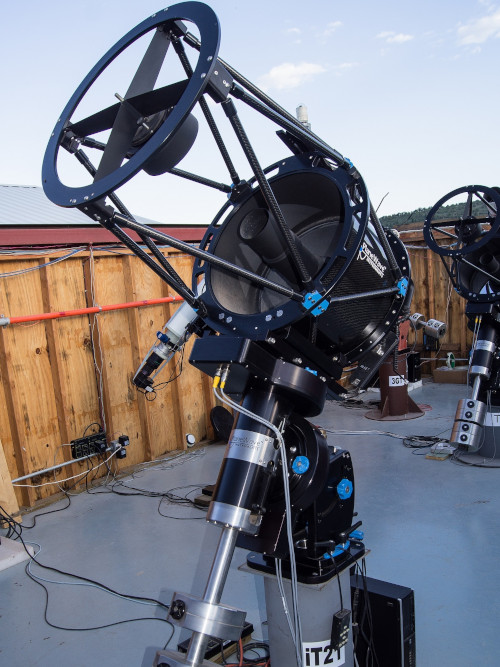
Remote astrophotography is a viable solution. It still requires expensive equipment and a remote dark sky location, however you don’t need to purchase the equipment and you don’t need to travel.
What is Remote Astrophotography?
Remote astrophotography is accessing a remote telescope via a web browser and using it to take images of objects in the night sky. Essentially you are leasing or borrowing time on someone’s equipment already set up in a dark sky location. It usually involves scheduling an imaging session, so you don’t have to be sitting at your computer when the images are taken.
Once the images are captured, they can be downloaded and processed.
The Pros and Cons of Remote Astrophotography
Pros
- Cheaper in the short term with no upfront costs
- No need to travel to a dark location
- Can image northern and southern hemisphere objects
- No setup of equipment required
- Don’t need to understand how to operate equipment
- Imaging sessions are scheduled and run automatically without user interaction
Cons
- Regular, long term usage can get expensive
- Not as rewarding as doing it all yourself
- Limited booking availability of some telescopes, especially during peak times to view current celestial events such as comets
- Equipment can go offline at short notice
Remote Astrophotography Services
The list of remote astrophotography services is ever growing and that means more options to suit different levels of interest and budgets. Some plan structures are complicated in a similar way to mobile phone plans, meaning you’ll need to take time to study them to see exactly what you get. Some include free telescope time, discounts when the moon is up, or access to image data sets. For the best and most rewarding results, look for a service that gives you control over what you want to capture and access to the RAW image files.
Most services will offer a refund if the imaging session is affected by bad weather.
Below is a brief rundown on some of the most popular remote telescope services that are worth looking into if you want to get started with astrophotography. Let me know in the comments if you have a favourite or if I have missed a good one.
iTelescope.net
Has a large range of over 20 telescopes across the globe including some in amazing dark sky locations such as Siding Springs Australia and Chile. There are plans starting from $20 USD to $1000 USD per month. This service is highly rated as one of the best in the business. It’s a popular service that usually requires booking sessions at least a week in advance to get a reservation. This is the service I started with a few years ago and I can recommend it.
Telescope.live
This service follows a similar approach to iTelescope and has telescopes in some of the same dark sky locations, but does not have as many. Plans start as low as A$6 up to A$399 per month.
Slooh.com
This service has an education focus to it, with gamification elements that motivate its subscribers to earn badges and rewards. I found their pricing arrangement confusing and not particularly upfront with what you get. Their plans as listed as ‘For Educators’ or ‘For Everyone’. Entry level plans only allow for PNG images to be captured, which are not suitable for quality astrophotography. If you want to have fun and learn about the universe, then this could be the service for you. However if you are looking to capture amazing deep sky images, you may want to look elsewhere.
Chilescope.com
Chile has some of the best conditions for astronomy. Clear dark skies with an average of around 280 cloud free nights per year makes this service a prime candidate for good results. This service also includes a couple of telescopes based in China. Check the website for pricing plans.
Astrobin.com
Aside from being a great forum site on all things related to astrophotography, it also has a list of supported remote astrophotography services. The site is also a great place to showcase your images.
Gallery of My Astrophotography Images




]]>Want to know how to process astrophotography images like these? Standby for my how to guide coming soon!